← Back to the overview

AI assistant setup

Set up your studio with your AI assistant

Connect the AI assistant you already use to NailMe. From your price list it prepares services, opening hours and address as a draft. Nothing is saved until you confirm on our website.

Free to download · iOS & Android

Connect your assistant

How it works

From connection to finished studio in three steps

AI assistant setup

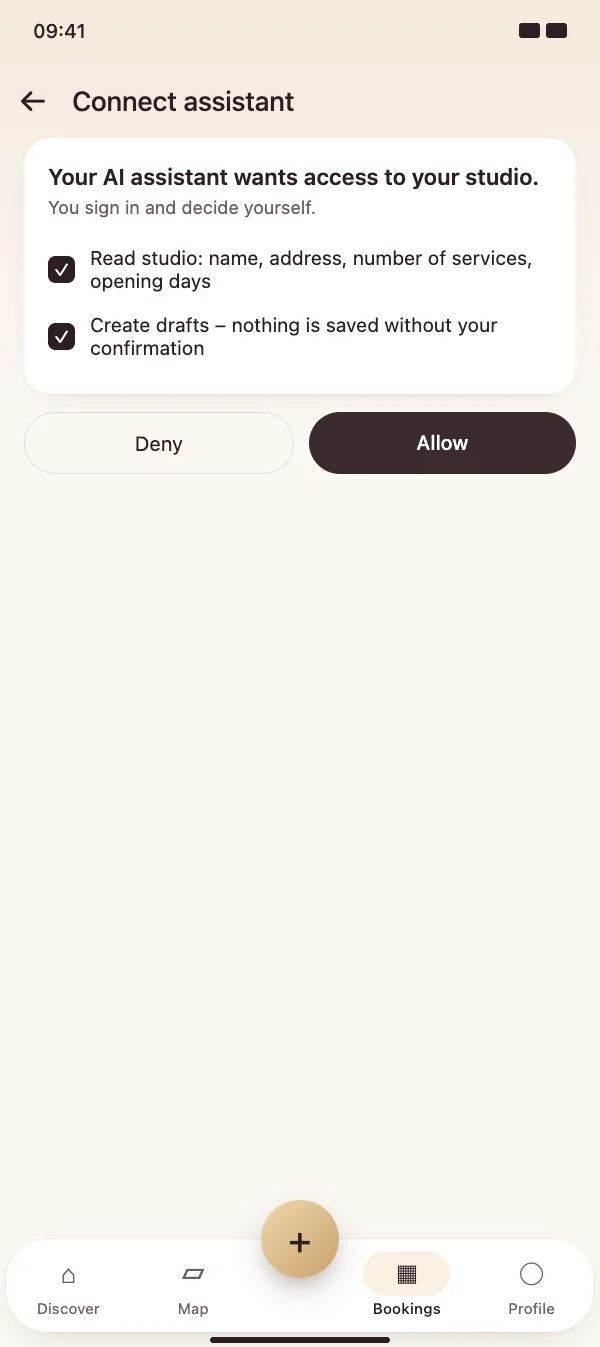
Connect your assistant

In ChatGPT or Claude, add a connector with the address below. You sign in on our website and tap Allow. The assistant then gets access to your studio only – and only as far as you approve.

  • Connector address: www.nailme.app/mcp/studio
  • Sign in with your existing NailMe account (these pages are in German for now)
  • You can end the connection at any time
Connect your assistant

AI assistant setup

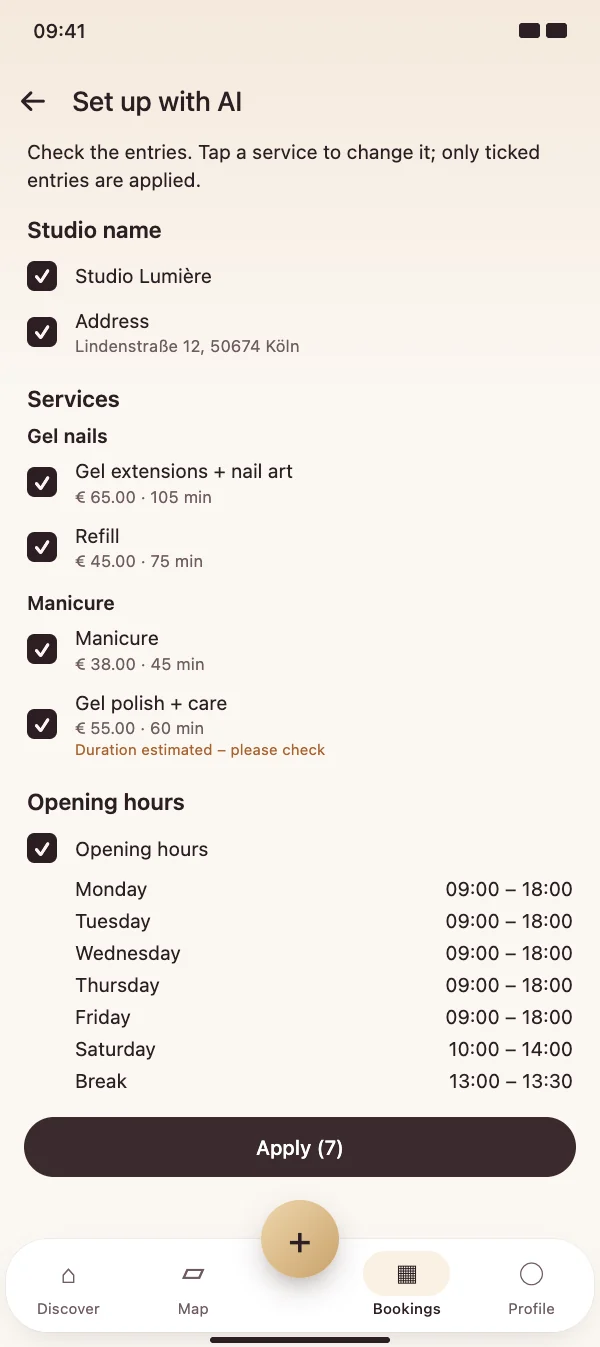
The assistant prepares, you confirm

Tell the assistant your prices and opening hours – as text, a copied website, a CSV list, or a photo or PDF it can read. It sends you a draft and a link. The draft is valid for 24 hours and changes nothing until you confirm it.

  • Services, categories, opening hours, address and studio name
  • On our website, untick anything you do not want
  • Only additions: existing services stay; opening hours are replaced only if you tick it
The assistant prepares, you confirm

AI assistant setup

See and end connections

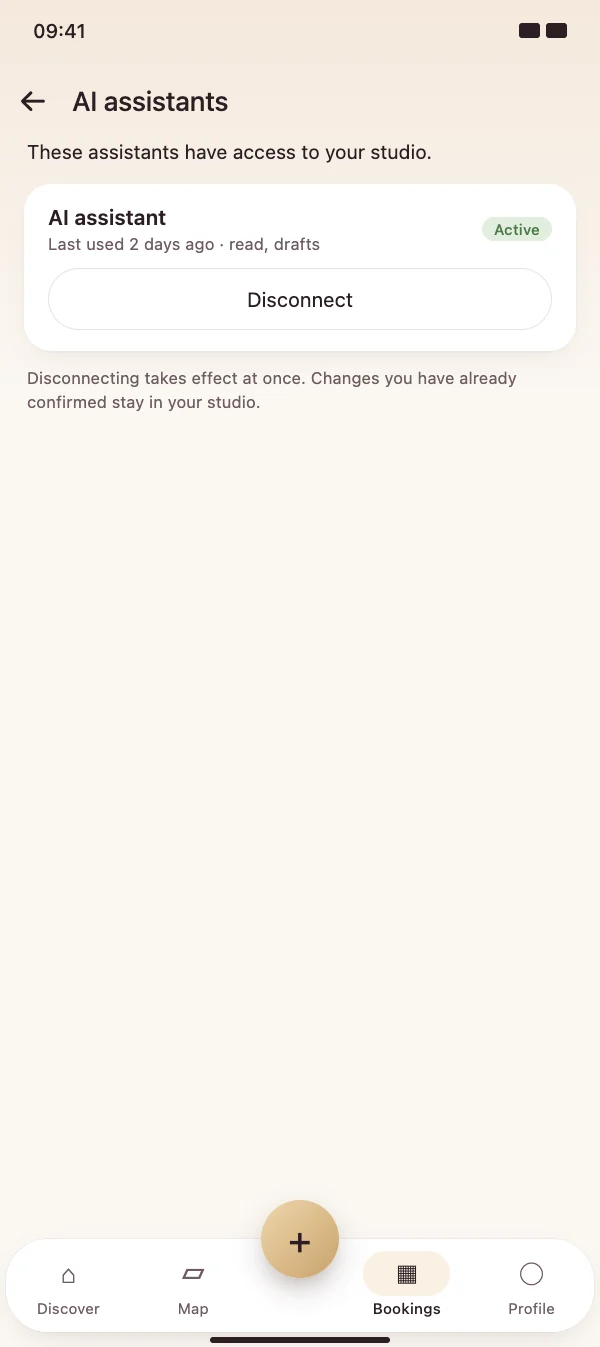
All connected assistants are listed on our website, with the permissions you gave. Ending a connection takes effect at once.

  • Connected assistants with their permissions
  • Ending a connection takes effect immediately
  • Confirmed changes stay in your studio
See and end connections

FAQ

Questions about the AI assistant setup

Who can connect an assistant?

Studios with a professional account. Access is currently switched on for each studio separately. Write to support@qubin.de with your studio name and we will check your account. Until it is enabled, connecting shows a message that the account is not enabled yet.

Does the assistant change my studio by itself?

No. The assistant can only read studio data and create drafts. Nothing is saved until you open the link, sign in and confirm on our website. Drafts expire after 24 hours.

Does it count against my AI limit?

Yes. Each draft made from text counts against the same limit as AI setup in the app: 10 a day and 30 a month.

Who processes my data?

Your conversation with the assistant is processed by the assistant's provider under its own privacy policy. Texts sent to our draft tool are processed by our AI features, as described in our privacy policy.


Set up your studio with your assistant

Download NailMe for free. Studio settings are in the Bookings tab – the assistant only prepares changes that you confirm.

Free to download · iOS & Android